How to Image a Failing Drive Before Recovery Tools Make Things Worse
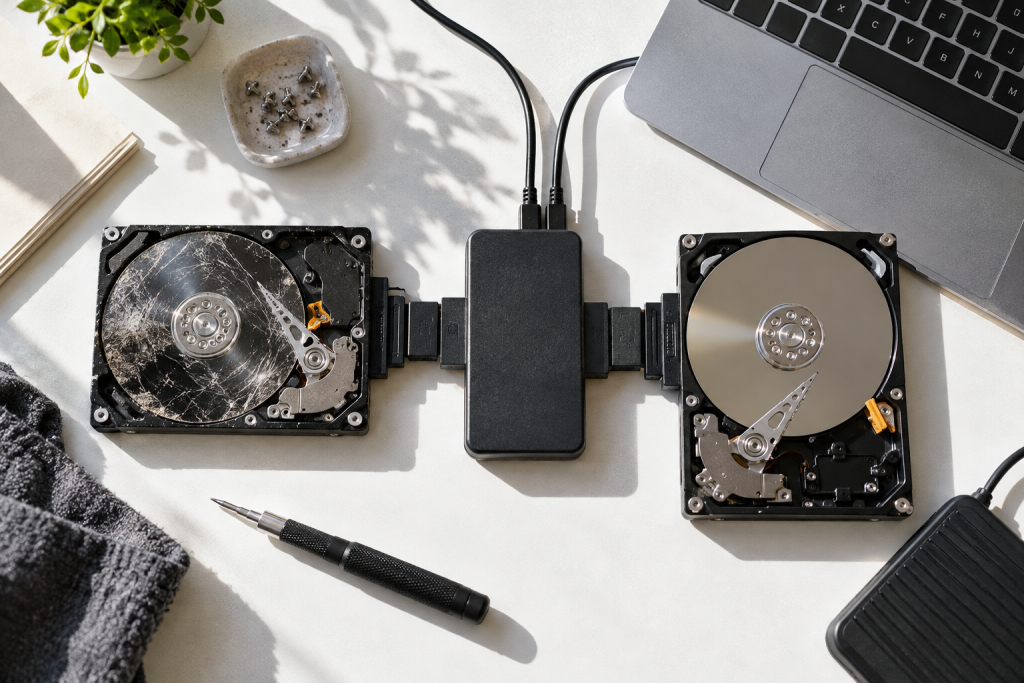
The drive started making a sound I’ve learned to hate: a soft, rhythmic click every two or three seconds, like a fingernail tapping a table. It was a 1TB laptop drive from 2019, still holding a client’s video project, and it had about forty minutes of useful life left. I didn’t open a recovery scanner on it. I plugged in a blank 2TB drive and started imaging it instead, one sector at a time, because that click told me everything I needed to know about what was about to happen.
This is the part where people make things worse. They download an undelete tool, point it at the failing disk, and let it chew through the platters for an hour. On a healthy drive that’s fine. On a drive with a mechanical fault or a dying controller, it’s a grind wheel. Every read request is a new stress cycle on hardware that is already failing. An imager reads the disk once and gives you a working copy to experiment on afterward. That is the difference between a bad afternoon and a lost project.
First, confirm the drive is actually sick
Not every drive problem is physical. A USB cable that’s flaking out will throw read errors that look like a dying disk. Before you touch anything, check the SMART data. On Windows, run CrystalDiskInfo (free) and look at the reallocated sector count and the pending sector count. A handful of reallocated sectors is normal wear. A number that climbs while you watch it is not. On Linux, smartctl -a /dev/sdX from the smartmontools package gives you the same picture.
The symptom that matters most isn’t the error itself, it’s the behavior. Listen for clicks, grinding, or the drive dropping off and reappearing in Device Manager every few minutes. If you hear a click pattern, stop reading and start imaging. If the drive is silent and behaves normally but a couple of files are corrupt, you probably just have a bad file, not a bad drive.
One more thing before you start: get a second drive ready, at least as large as the failing one, and wipe it clean. You’re about to copy a whole disk, including its problems.
The imaging tools that actually do this
You don’t need a backup suite to image a failing drive, and in some ways a backup suite is the wrong tool. Backup software is built to copy files in a smart way (skipping unchanged ones, using incremental mode) and to do it on a schedule without drama. A failing drive needs the opposite: a dumb, slow, sector-by-sector copy that doesn’t give up at the first unreadable block. Here’s what I’d reach for, in order.
ddrescue (the one I use)
GNU ddrescue is the tool I reach for first, and it’s what recovered that clicky laptop drive. It runs on Linux (and via a bootable USB), it’s free, and it’s built specifically for failing media. Its party trick is that it reads from easiest to hardest: it copies the whole surface first, noting where it hit errors, then goes back and retries only the bad areas with progressively more aggressive settings. If the drive dies mid-run, you can stop, unplug, and resume from the log file later without starting over.
The basic invocation looks like this:
ddrescue -d -r3 /dev/sdb /mnt/backup/disk.img /mnt/backup/disk.log
That’s direct access (bypassing the OS cache), three retries on bad sectors, and a log file so you can resume. On a drive that’s actively failing, you can add --no-scrape to the first pass and squeeze every good sector out before you go back for the scraps.
Macrium Reflect
If you want a Windows GUI and you don’t want to learn a command line at 11pm, Macrium Reflect handles disk imaging well, and its recovery disk creator is genuinely useful for working on a disk that won’t boot. It’s not free in its full form, but the price is small compared to a data loss you can’t undo. The tradeoff is that Reflect is a backup tool first, so if the drive is actively clicking it may not push as hard through bad sectors as ddrescue will.
Acronis True Image
Acronis True Image will clone and mirror a system drive in a couple of clicks, and the anti-ransomware feature that detects and reverses unauthorized encryption is a nice extra when the failure isn’t mechanical. It’s a subscription ($49.99/year for the entry tier, though it goes on sale) and it’s heavier than the job needs. Fine for routine imaging, less ideal for a drive that’s on its way out.
AOMEI Backupper
If you want a free option, AOMEI Backupper has disk and partition backup in its free tier. It’s a solid program, but like Acronis it’s a backup tool, not a rescue tool. I’d use it to image a healthy drive before I start messing with it, not to wrestle data off a dying one.
How to actually run the image
If you go the ddrescue route, the sequence is short. Boot into a Linux live environment (any modern distro’s USB image works), plug in the failing drive and the destination, and confirm the device letters with lsblk before you do anything. Getting the source and destination backwards is a mistake you only make once, and I’ve made it once.
- Make sure nothing is mounted from the failing drive.
umountanything that is. - Run the first pass with
--no-scrapeand no retries: get the easy data out fast. - Check the log with
ddrescuelog -tto see how much of the disk is unresolved. - If there’s still unresolvable area, run a second pass with retries and slower read speeds.
- Once the image is complete, mount it read-only and copy files off that, never off the original.
If the drive is too far gone to finish at all, that’s information too. The unresolved sectors tell you what’s lost, and you can decide whether professional recovery is worth the cost. For most people it isn’t, but for a drive holding irreplaceable work it’s a real option, and the image is what you hand to the lab.
Why this beats running a recovery scanner first
Here’s the reasoning I keep coming back to. A recovery scanner has to read every sector of the drive to build its index of deleted files, which is exactly the workload a failing drive can’t survive. It also has to write its own temporary files and even a database, sometimes to the drive itself if you’re not careful about the output path. And most consumer recovery tools (including Recovery Toolbox’s family of utilities) are designed for the logical case: the file was deleted, the drive is fine, get it back. They’re very good at that. They’re not built for hardware that’s physically dying.
An image, by contrast, is read-only on the source. Every subsequent decision (which files to pull, which tool to use, whether to keep the drive) happens against the copy. The original disk gets read once and then left alone. That’s the thing a failing drive wants most.
The unglamorous part that prevents all this
Windows ships with a patchwork of backup utilities held over from the Windows 7 era. File History and Restore Points work for narrow cases, but as PCWorld puts it plainly, none of them are suitable for quick and easy disaster recovery, including the cloud backup you get with a Microsoft account. The people I know who’ve never lost a project are the ones with a scheduled image of the whole disk, so that when a drive dies, they’re restoring a copy instead of performing surgery. Acronis and Macrium both do this on a schedule. So does Backupper in its free tier.
Set one up this week, before the next drive starts clicking.
One image of your system drive costs an external drive and about an hour. Getting files back off a drive that’s already failing is a different kind of project, and you only want to do it once.