The Best Data Recovery Tools for a Failing Hard Drive
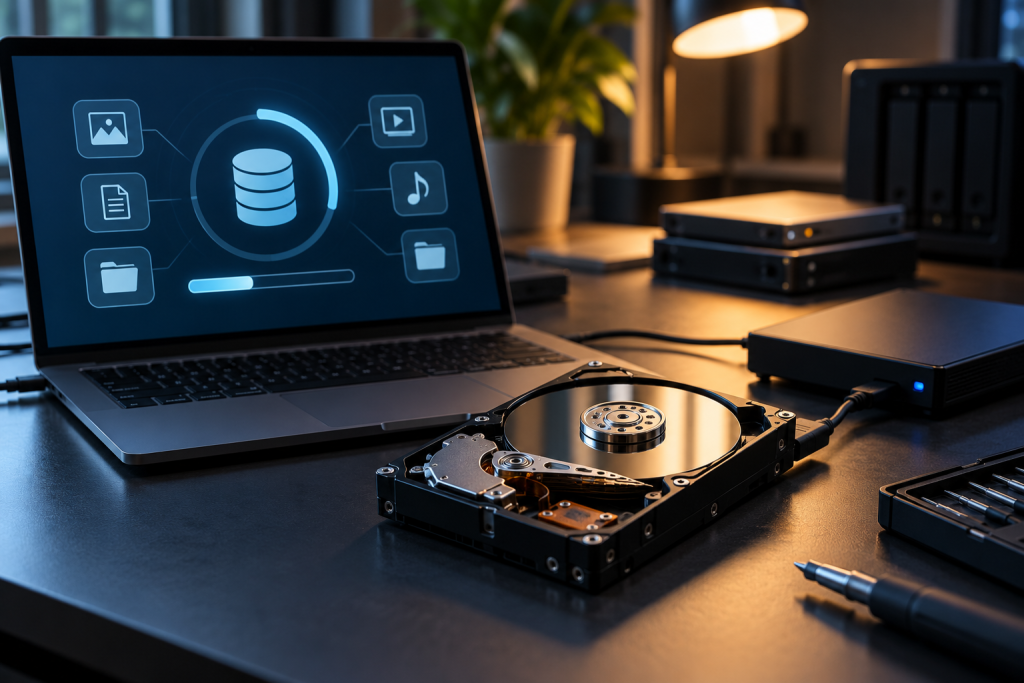
A failing drive is a completely different animal from a deleted file. When a platter is dying or a controller is flaking out, every write you do, every spin-up you trigger, pushes the hardware closer to the end. That changes which tools are actually useful and how you’re supposed to use them. Most recovery software is built for logical accidents (an accidental delete, a quick format, a corrupted file system). Point it at a physically failing drive and you can make things worse.
Here’s the honest lay of the land, plus the recovery tools worth having on hand when the drive won’t behave.
Rule one: stop using the drive
If a mechanical drive is clicking, grinding, or throwing SMART errors, power it down and leave it down. Software recovery cannot outrun a head crash. The more you spin a dying platter, the more sectors get scratched and the less a professional clean-room recovery can salvage later.
SSDs are a slightly different story, and not in a good way. When NAND flash begins to fail, the controller often locks up entirely and stops presenting data at all. A drive that won’t enumerate has no file system for a recovery app to scan. At that point you’re looking at chip-off recovery by a specialist, not a download.
So the useful split is this:
- Drive still mounts and reads: software recovery can work, if you move fast and write nothing to the source drive.
- Drive mounts but throws I/O errors: image it first with a tool that tolerates bad sectors, then recover from the image.
- Drive doesn’t mount, clicks, or disappears from the BIOS: stop. Physical recovery or a fresh image from a failing clone, not a file scanner.
The image-first tools
This is the step almost everyone skips, and it’s the one that matters most on a failing drive. Before any recovery scan, you want a byte-for-byte image of the drive so that all further work happens on a copy. If a scan reads the same bad sector ten times across ten passes, you’re stressing hardware that may not survive it.
Two categories of tool do this:
- Imaging utilities that copy a drive sector by sector and skip over unreadable regions instead of hanging on them. ddrescue is the classic open-source option for this job, and it’s built specifically to handle drives that are partially dead.
- Hardware write blockers or a spare target drive big enough to hold the full image. The image has to land somewhere that isn’t the failing drive.
Once you have a clean image on a healthy drive, every recovery tool becomes low-risk. You scan the copy, recover to a third drive, and the original failing unit can be retired or sent out for physical recovery without losing your shot at the data.
Recovery Toolbox: a family, not one program
Recovery Toolbox, developed by Recovery Toolbox, Inc. since 2003, is a collection of separate utilities rather than a single do-everything suite. That matters when you’re picking the right one for a failing drive, because each tool targets a specific job.
For a failing HDD with a healthy NTFS file system, Recovery Toolbox File Undelete is the relevant freeware piece. It recovers deleted files on hard drives formatted with NTFS. The catch is stated right up front: it doesn’t work with SSD storage. So if your “failing drive” is an SSD, this specific tool is out.
For flash and memory cards, Recovery Toolbox for Flash handles FAT-formatted media: SD, CF, MMC cards, USB drives, cameras, and similar. That one is shareware rather than free.
There’s also a free tool for optical media corruption, and shareware options for damaged RAR archives, Excel files, and Outlook PST/OST files. That last set is worth knowing about if the drive failure took your email store or spreadsheets with it. A Word file that won’t open after a crash is its own recovery problem, separate from deleted files.
The honest limitation: Recovery Toolbox tools are format-focused. If you’re staring at a drive with bad sectors, none of them replaces a proper imaging step first. Use them on the image, not the dying original.
MiniTool Partition Wizard has a trap
Partition Wizard from MiniTool Software Ltd. shows up in a lot of recovery advice, and there’s a feature most people don’t check before relying on it. The free version of the software cannot save any of the data it may find. It will scan, show you what’s there, and then decline to write the recovered files out until you pay.
That’s a preview, not a recovery tool. If a guide sends you to Partition Wizard’s free edition expecting to rescue files off a failing drive, you can waste critical time on an unrecoverable download. It’s fine as a partition manager if you license it. As a free recovery solution, it isn’t one.
Also relevant: from version 12, some previously free features were removed, including resizing. If you see an old tutorial pointing at features the current free build doesn’t have, that’s why.
Backup software isn’t recovery software, but it’s the fix that actually works
Here’s the uncomfortable part. By the time you’re running a recovery scan on a physically failing drive, you’re already in damage-control mode. The tools that would have prevented the whole problem are the ones you’d set up beforehand.
PCWorld’s take on Windows‘ built-in options is blunt and correct. Microsoft‘s backup situation is a patchwork of holdovers from Windows 7. Restore Points and File History work. System Repair Disc and Recovery Drive mostly don’t, and none of it is suited to quick disaster recovery. Third-party tools cover backup, restore, disk imaging, and full image restore far better than what ships with Windows.
That last point connects directly to a failing drive. Disk imaging is exactly the same operation as the pre-recovery image step, just done on a schedule. If you’d been imaging your drive weekly, a failing platter would be an inconvenience, not a crisis. You’d restore the last image and move on.
If you’re picking backup software now, look for full image restore and disaster recovery, not just file backup. ZDNET’s testing framework for backup tools weighs reliability first, then restoration without corruption, then speed and support, which is a reasonable order for anyone who’s been burned by a backup that wouldn’t restore. The review process there combines vendor data, retailer listings, independent reviews, and customer reports, so it’s less likely to miss real-world failures.
Note that the free tiers of recovery tools and the paid backup products often get confused in comparisons. They do different things. A recovery tool gets files back after a loss. Backup software makes sure there’s nothing to recover in the first place.
What I’d actually do with a failing drive
- Power down. Don’t run chkdsk, don’t defrag, don’t try to “clean up” the drive.
- Connect it to a healthy machine and image it with a tool that tolerates bad sectors.
- Run your recovery scan against the image, not the original.
- Write recovered files to a third drive, never the source.
- If the drive is clicking or absent from the BIOS, skip 2 through 4 and talk to a physical recovery lab.
The software matters, but the order matters more. A good recovery tool aimed at a dying drive is worse than no tool at all. Image first, recover second, and keep the original untouched until you’ve confirmed the data is safe elsewhere.
And then set up real imaging on your working drives. The next failure is not a matter of if.